WooCommerce
Prerequisites
- Create a PostFinance Checkout account if you don’t already have one.
Installation
- In your WordPress backend, go to Plugins > Add New.
- Search for PostFinance Checkout.
- Install the plugin from the search results.
- Once installed, the plugin will appear under Plugins. You can open the configuration from there.
You will automatically be notified once updates are available for the plugin within WooCommerce.
Configuration
-
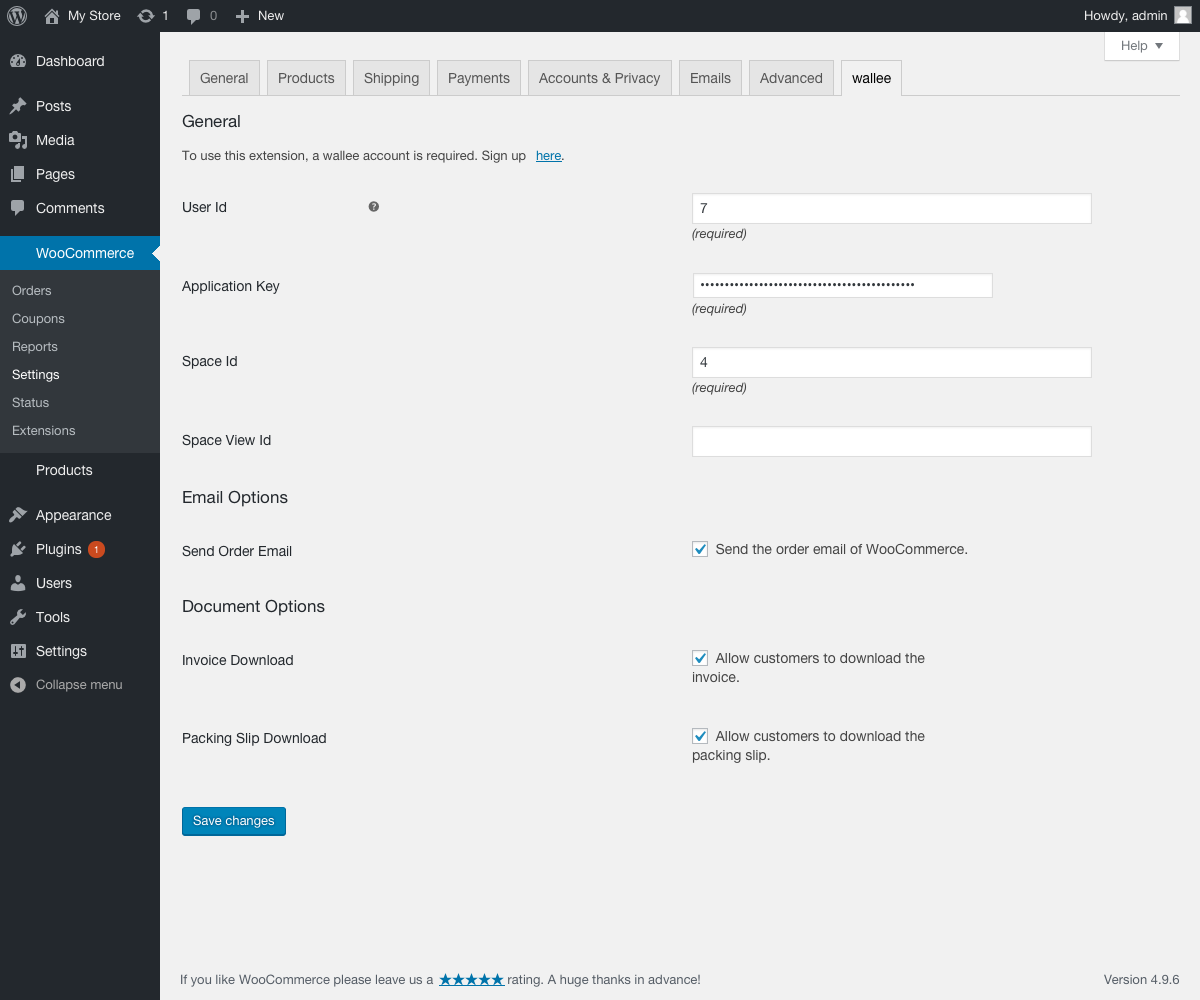
Navigate to WooCommerce > Settings > PostFinance Checkout.
-
Enter your PostFinance Checkout Space ID, User ID, and Authentication Key (create an application user manually in PostFinance Checkout).\
-
Optionally disable downloading invoice and packing slip (this prevents customers from downloading them in the WooCommerce frontend).
-
Save the configuration.
After saving:
- Payment methods are created in WooCommerce.
- Webhooks are automatically set up.
To view the payment method configuration: WooCommerce > Settings > Payment.
Payment method configuration
Setup
-
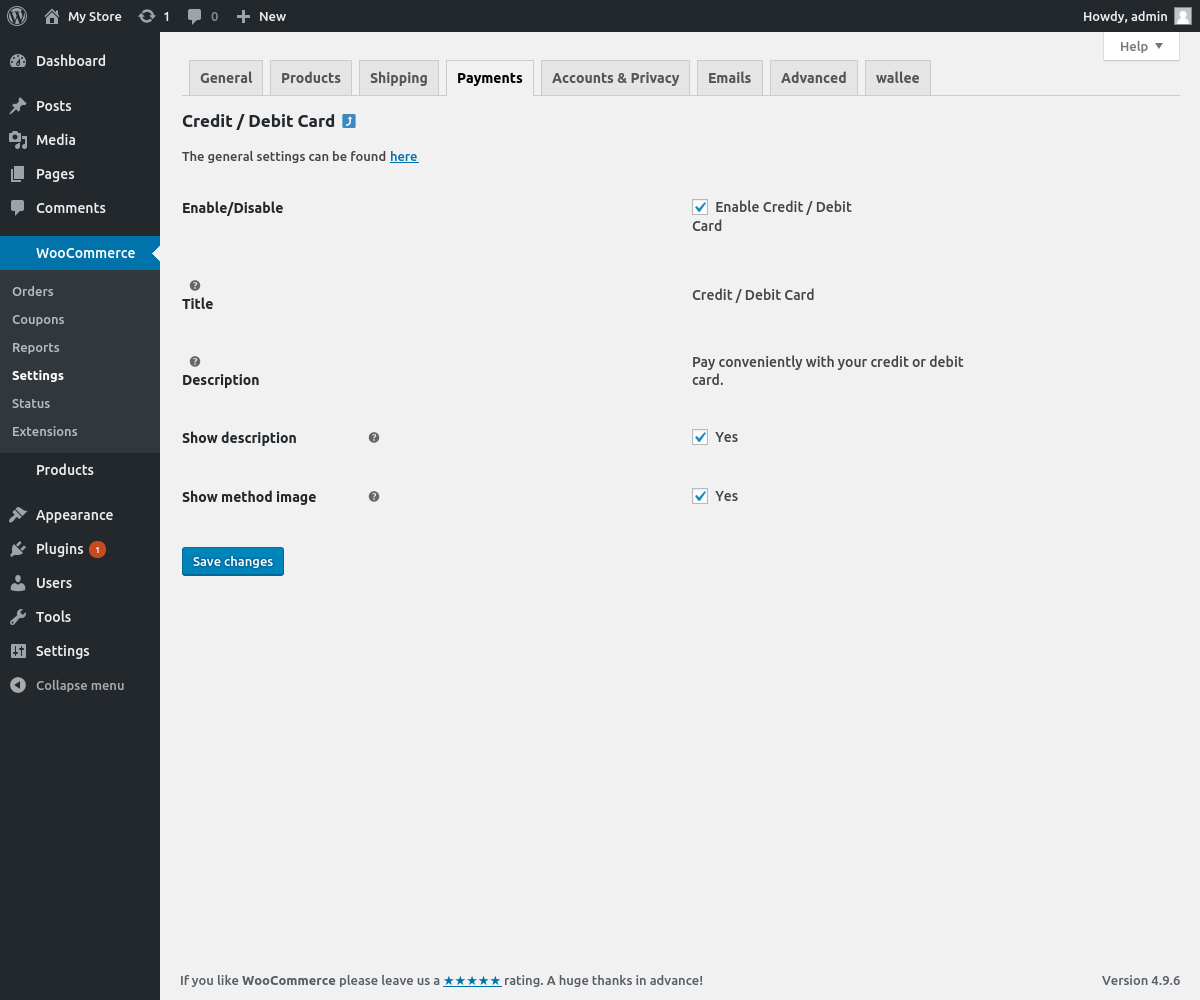
Payment method configurations are synchronized automatically into WooCommerce.
-
Minimal settings are available under WooCommerce > Settings > Payment.\
Method settings
- To change payment method description, title, or logo, update them in PostFinance Checkout. Changes will sync automatically.
- To map payment statuses > order statuses, use the Order Statuses Settings in the plugin.
WooCommerce order status
The Payment Process of PostFinance Checkout is completely standardized for every payment method. This gives you the ability to simply add a payment method or processor without changes inside of your WooCommerce configuration. An overview about the states and the payment processes of PostFinance Checkout can be found in the Payment Documentation.
Below you find a diagram that shows the state machine of the WooCommerce order including additional information for the state transitions.
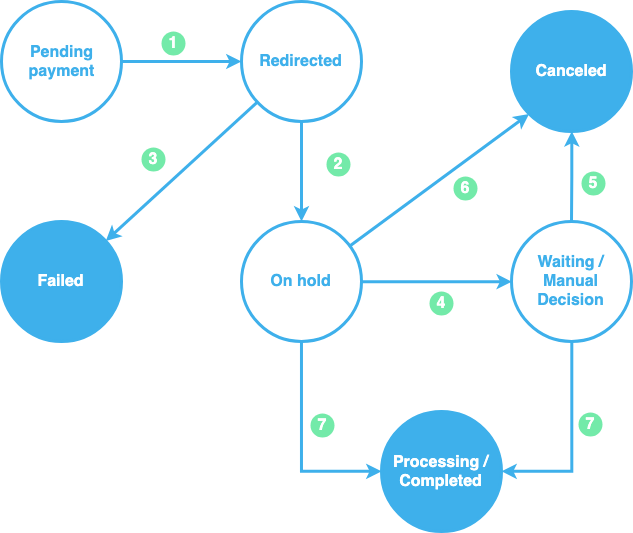
Key flow:
| WooCommerce order status | When it is set |
|---|---|
| Redirected | The customer is redirected to PostFinance Checkout. |
| On hold | The transaction is authorized (amount reserved). |
| Failed | The authorization failed. |
| Waiting / Manual Decision | The delivery indication is pending. |
| Canceled | Fulfillment was denied or the transaction voided. |
| Processing / Completed | The transaction is fulfilled. |
For details, see our Payment Documentation.
Transaction management
Capture (Complete an order)
You have the possibility for your transactions to have the payment only authorized after the order is placed. Inside the connector configuration you have the option, if the payment method supports it, to define whether the payment should be completed immediately or deferred.
-
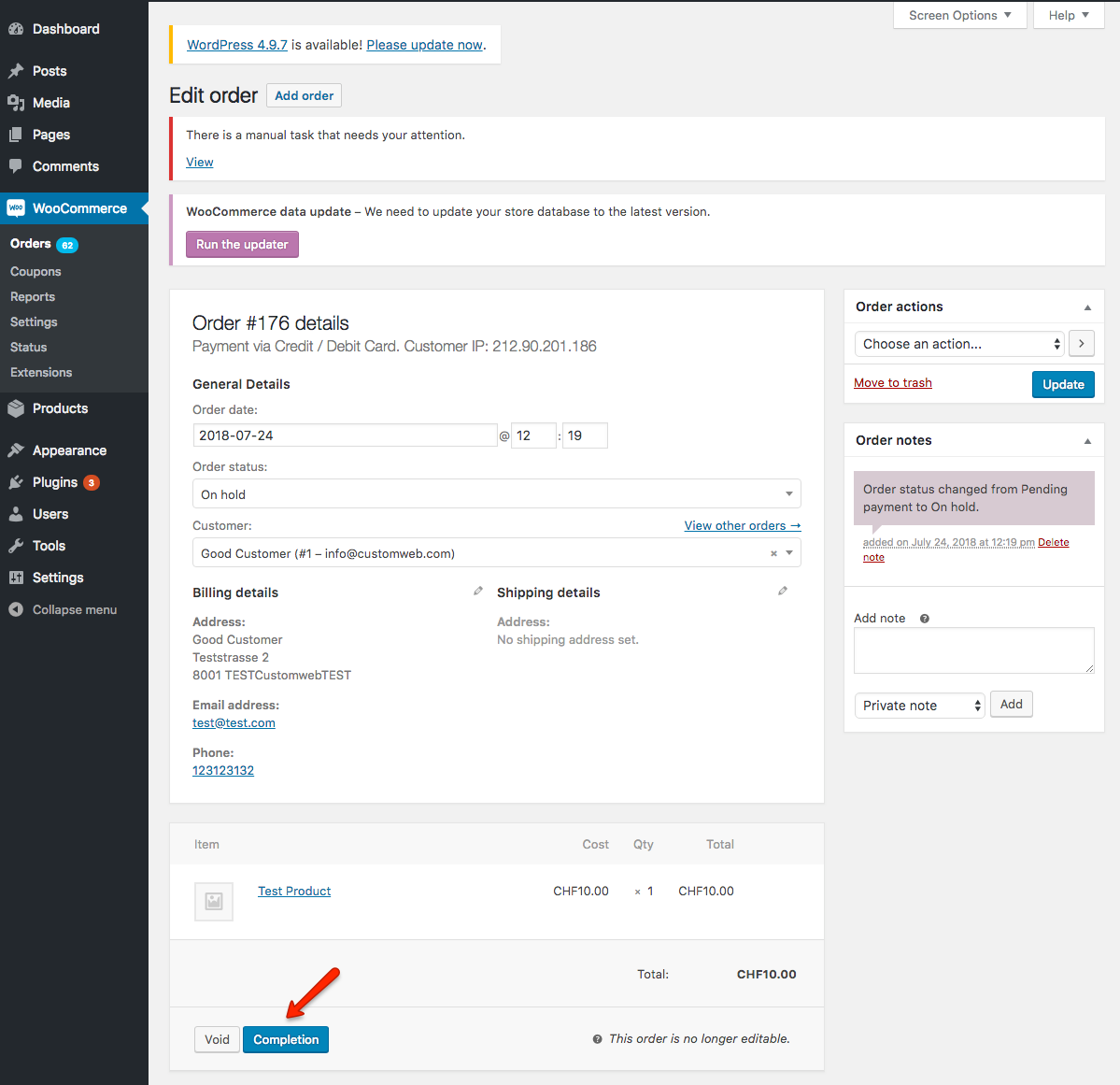
Capture transactions directly in WordPress backend.
-
If completion is pending in PostFinance Checkout, the order remains On hold.\
Deferred payment completion
- Useful if you only want to authorize transactions until items are ready to ship.
- Capture the transaction before shipment to avoid unpaid deliveries.
Recommended steps
- Filter all On hold orders.
- Capture them.
- Fulfill all orders once they are in Processing/Completed state.
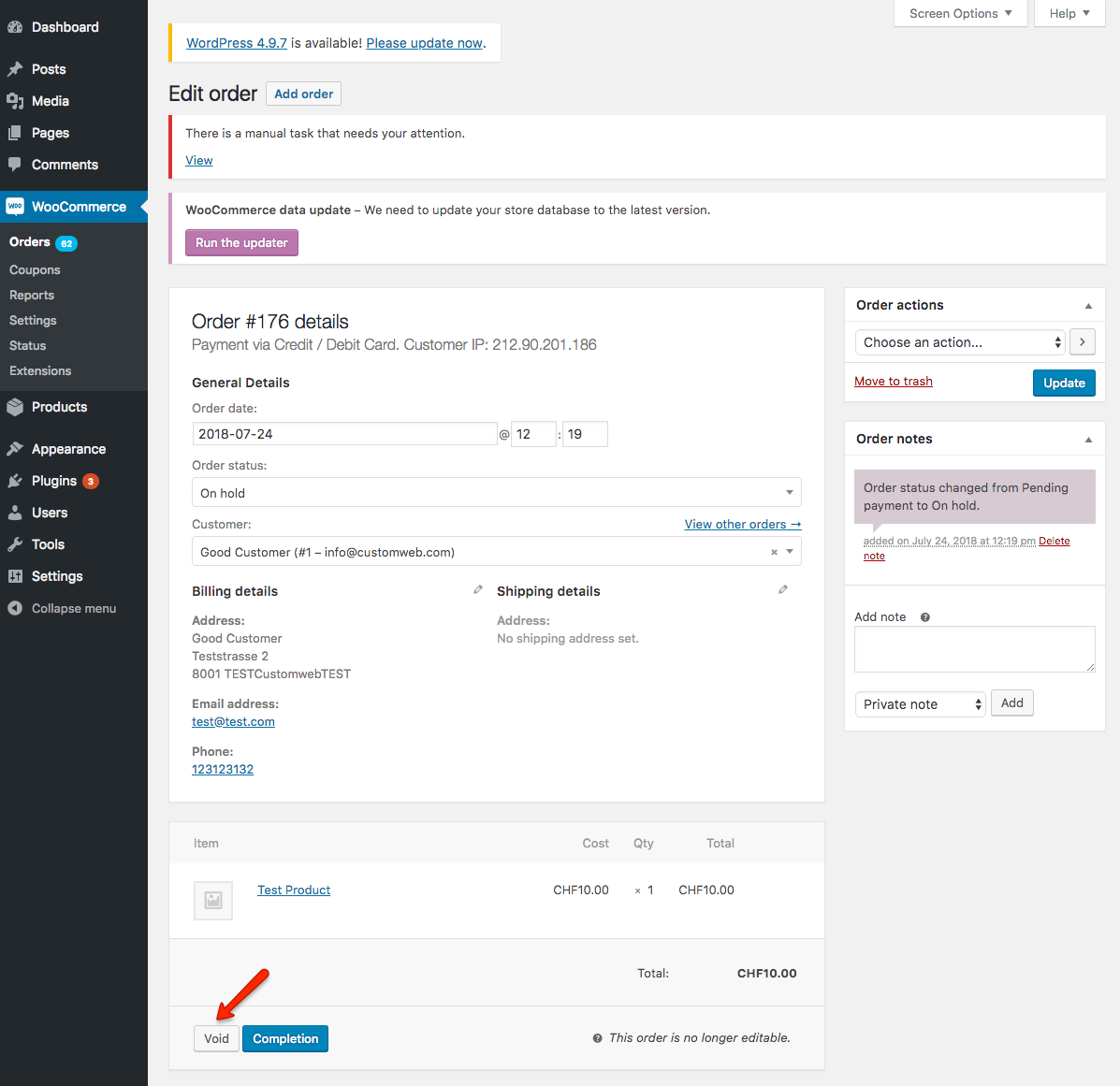
Void a transaction
-
Open the order and click Void.
-
Only possible for transactions not yet completed.\
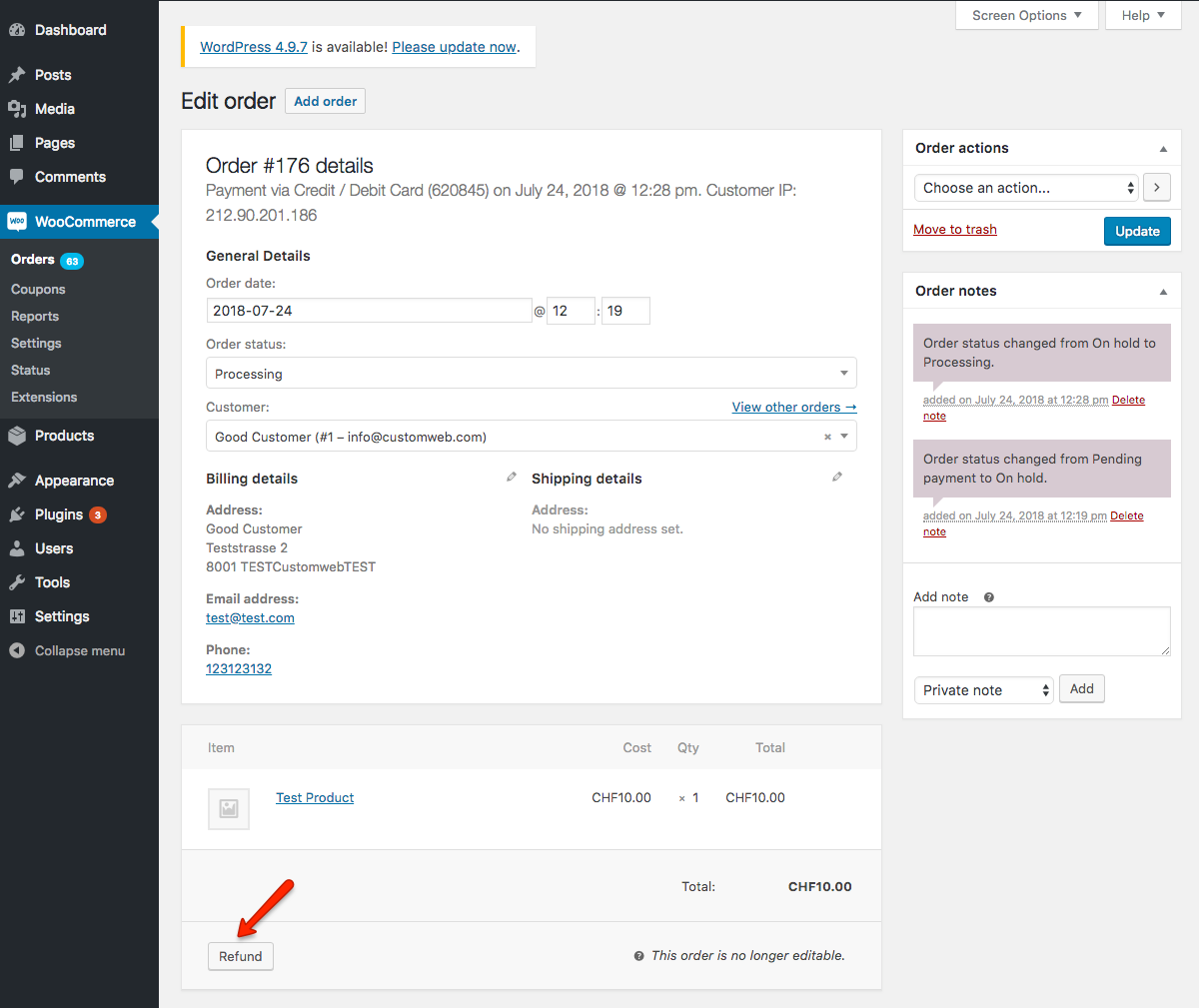
Refund a transaction
-
Open the order and click Refund.\
-
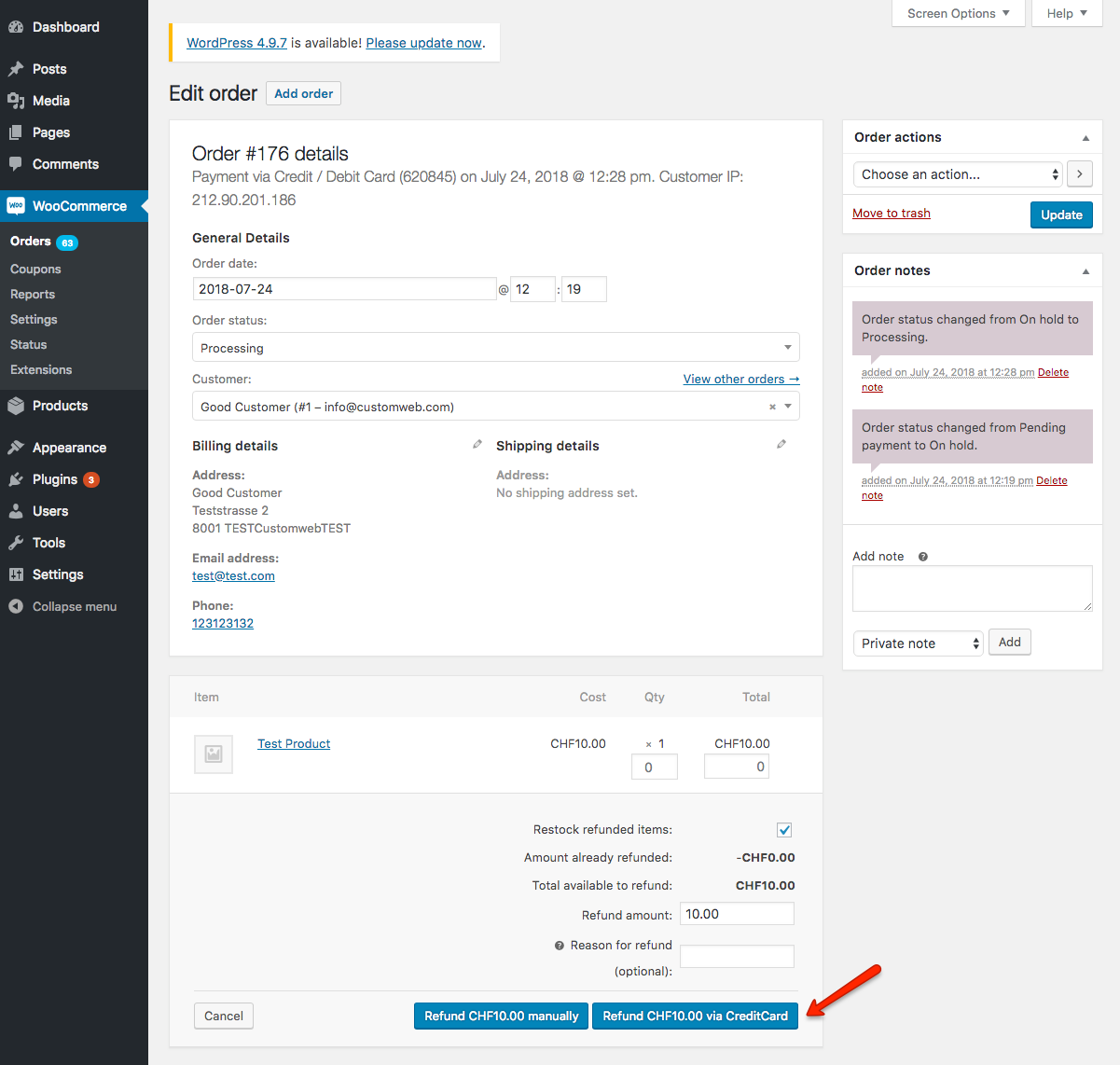
Enter refund amount (partial or full).\
-
Multiple partial refunds possible until original amount is reached.
Refunds are visible in WooCommerce only after being successfully processed.
On-hold orders
Orders remain On hold if:
- The transaction is not yet completed.
- Delivery decision is pending (auto or manual task created).
More details: Manual Task Documentation.
Limitations of synchronization
Captures, voids and refunds done in PostFinance Checkout are NOT synced back to WooCommerce. Always perform these actions inside the WooCommerce backend — otherwise the WooCommerce order will show a state that no longer matches the actual payment.
Tokenization
- If supported by the payment method, customer payment details can be stored.
- Enable in One-Click Payment Mode (set to “allow” or “force storage”) — see Tokenization.
- Not available for guest checkouts.
WooCommerce subscriptions
- To sell subscriptions, install the PostFinance Checkout Subscription Plugin from WordPress (search: “PostFinance Checkout Subscriptions”). See Subscriptions for how recurring billing works on the platform.
- Requires WooCommerce Subscriptions plugin.
Error logging
- Uses WooCommerce’s default logging.
- Logs available under WooCommerce > Status > Logs.
FAQ
How can I make the payment methods appear in checkout?
- Ensure Space ID, User ID, and Authentication Key are entered in Settings.
- Check methods under WooCommerce > Settings > Payment and activate them.
- Verify no other plugin is hiding payment methods.
How can I send product attributes to PostFinance Checkout?
- Only global attributes are supported (not custom attributes).
- Edit under Products > Attributes > Send attribute to PostFinance Checkout.
How can I update the plugin?
- Update directly in WordPress > Plugins.
- FTP credentials may be required.
How can I translate the plugin?
- Install Loco Translate plugin.
- Navigate: Loco Translate > Plugins > WooCommerce PostFinance Checkout.
- Select an existing language to edit, or add a new one.
How can I add the value of a Date Of Birth or Gender input field from my checkout form to the PostFinance Checkout addresses?
Billing Address Date of Birth
For a custom billing date of birth input field to be used in the address the following conditions must be fulfilled:
- The form field name has to be 'billing_date_of_birth' or '_billing_date_of_birth' or an action has to be registered for the filter 'wc_PostFinance Checkout_billing_date_of_birth_field_name' which returns the field name.
- The field must be submitted in the 'post_data' parameter in the update_order_review request.
- The date must be saved on the order meta data with the key 'billing_date_of_birth' or '_billing_date_of_birth' or an action has to be registered for the filter 'wc_PostFinance Checkout_billing_date_of_birth_order_meta_name' which returns the meta key.
- The value must be in one of the following formats 'd.m.Y', 'd-m-Y', 'm/d/Y', 'Y-m-d', 'Y/m/d', or an action has to be registered for the filter 'wc_PostFinance Checkout_custom_date_of_birth_format' which returns a custom date format. (For more information on the date format check the following link: PHP DateTime Format)
Billing Address Gender
For a custom billing gender input field to be used in the address the following conditions must be fulfilled:
- The form field name has to be 'billing_gender' or '_billing_gender' or an action has to be registered for the filter 'wc_PostFinance Checkout_billing_gender_field_name' which returns the field name.
- The field must be submitted in the 'post_data' parameter in the update_order_review request.
- The value must be saved on the order meta data with the key 'billing_gender' or '_billing_gender' or an action has to be registered for the filter 'wc_PostFinance Checkout_billing_gender_order_meta_name' which returns the meta key.
- The value must be either 'm' or 'male' for male and 'f' or 'female' for female.
Shipping Address Date of Birth
For a custom shipping date of birth input field to be used in the address the following conditions must be fulfilled:
- The form field name has to be 'shipping_date_of_birth' or '_shipping_date_of_birth' or an action has to be registered for the filter 'wc_PostFinance Checkout_shipping_date_of_birth_field_name' which returns the field name.
- The field must be submitted in the 'post_data' parameter in the update_order_review request.
- The date must be saved on the order meta data with the key 'shipping_date_of_birth' or '_shipping_date_of_birth' or an action has to be registered for the filter 'wc_PostFinance Checkout_shipping_date_of_birth_order_meta_name' which returns the meta key.
- The value must be in one of the following formats 'd.m.Y', 'd-m-Y', 'm/d/Y', 'Y-m-d', 'Y/m/d', or an action has to be registered for the filter 'wc_PostFinance Checkout_custom_date_of_birth_format' which returns a custom date format. (For more information on the date format check the following link: PHP DateTime Format)
Shipping Address Gender
For a custom shipping gender input field to be used in the address the following conditions must be fulfilled:
- The form field name has to be 'shipping_gender' or '_shipping_gender' or an action has to be registered for the filter 'wc_PostFinance Checkout_shipping_gender_field_name' which returns the field name.
- The field must be submitted in the 'post_data' parameter in the update_order_review request.
- The value must be saved on the order meta data with the key 'shipping_gender' or '_shipping_gender' or an action has to be registered for the filter 'wc_PostFinance Checkout_shipping_gender_order_meta_name' which returns the meta key.
- The value must be either 'm' or 'male' for male and 'f' or 'female' for female.
Support
If you need help, please contact our support.