Oracle Symphony
Overview
This guide explains how to integrate Oracle Simphony (SPI) with wallee to process card-present transactions in hospitality environments. Simphony is Oracle’s restaurant POS suite and supports two primary integration modes. Both integrations are supported:
- SPI Counter – Traditional POS-integrated payment flow at the cashier.
- SPI Pay-at-Table – Table-side terminal payments through a dedicated SPI Pay-at-Table app.
Both modes share the same installation workflow. Pay-at-Table requires an additional configuration step on the terminal.
Requirements
Network Requirements
- The terminal must be in the same LAN as the Simphony POS environment, mandatory for SPI Pay-at-Table. For Counter the Cloud Integration is used.
- A stable internet connection is required for communication with wallee’s payment gateway.
Certificates
Simphony requires a root certificate and a client certificate to authenticate communication with us.
Root Certificate
Install the provided root certificate on the Simphony system. Request it from our support team.
Client Certificate
Install the client certificate in PFX format (rename the file from .p12 to .pfx before installation).
The certificate and its password are issued by our support team — request them together with the root certificate.
Integration Modes
SPI Counter
SPI Counter is used for stationary cashier-based payments. Payments are triggered directly from the POS. No additional terminal applications are required.
Use SPI Counter if you need:
- Traditional POS payment flow
- Minimal device-side configuration
- Centralized operations directly at the POS
SPI Pay-at-Table
SPI Pay-at-Table enables staff to accept payments directly at the table using a mobile terminal.
Payments are initiated via the SPI Pay-at-Table app, installed on the terminal.
Additional Requirements
- The terminal must run the SPI Pay-at-Table app.
- The terminal must be in the same local network as the Simphony POS.
Terminal Setup
Initial Setup
- Power on the terminal and connect it to the same network as the Simphony system.
- Complete the standard onboarding flow in wallee.
- (For Pay-at-Table) Install the SPI Pay-at-Table app from the terminal’s configuration menu.
Configuring Oracle Simphony
All configuration is performed in the Enterprise Management Console (EMC). Its important to run the system in the Middleware mode.
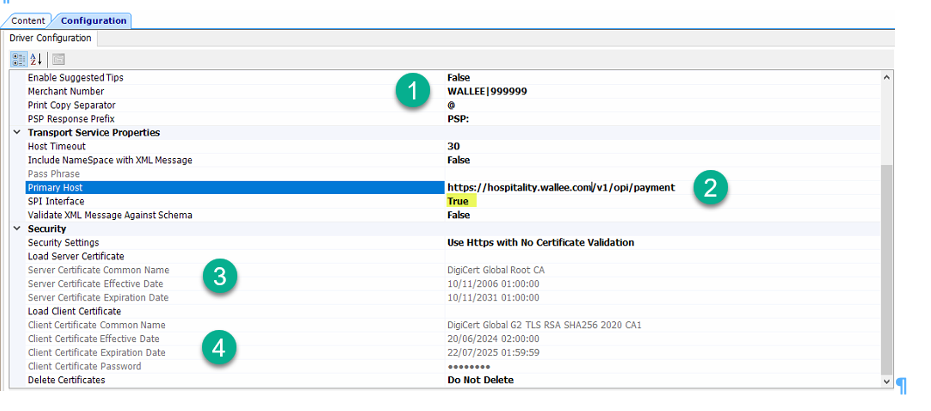
Step 1 — Merchant Configuration
Enter the Merchant Number provided during onboarding: example: WALLEE|999999
Step 2 — Configure Primary Host
Set the primary host endpoint: https://hospitality.wallee.com/v1/opi/payment
Step 3 — Enable SPI Interface
Activate SPI integration by setting:
- SPI Interface = TRUE
Step 4 — Upload Certificates
Root Certificate
Install the following root certificate. In order to get the Root certificate or the client certificate please get in touch with our Support in order to get the certificates and the corresponding passwords.
Install the following client PFX.
Important: Rename the file from .p12 to .pfx before installation.
Install the wallee certificates in order to esablish a secure connection
- Request the current PFX file from our support team.
- Install it with the password you receive together with the file.
Step 5 — Workstation Mapping
Send all configured Workstation IDs from EMC to the wallee onboarding team.
Mapping rules:
- One workstation per TID
- All IDs must be registered before transactions can be processed
Testing the Integration
SPI Counter Test Cases
- Start a sale (e.g., CHF/EUR 5.00) directly from the POS
- Perform a void
- Perform a refund
- Check reconciliation behaviour
SPI Pay-at-Table Test Cases
- Open a table in Simphony
- Locate the table in the terminal app
- Process a payment at the terminal
- Confirm the table is closed/updated in Simphony
Troubleshooting
| Issue | Possible Cause | Solution |
|---|---|---|
| Terminal cannot find tables | Terminal not in same LAN | Verify LAN/Wi-Fi setup |
| Certificate error | Wrong file format or upload issue | Re-upload .pfx + root certificate |
| Payment not triggered | SPI interface disabled | Ensure “SPI Interface = TRUE” |
| Incorrect TID mapping | Missing workstation list | Send IDs to onboarding support |