Products
A product defines what you sell on a recurring basis and how it is priced. Subscribers never subscribe to the product directly — they subscribe to a product version, which freezes the pricing and the component setup at a point in time. That is what lets you change your pricing without forcing existing subscribers onto the new terms.
The example used on this page is the payment product introduced in the Quick start.
Creating products
Create a product in the portal
New products can be created in your space under:
Space > Subscriptions > Products.
In the general configuration you can set:
- Allowed payment methods
- Email delivery options (including templates)
Every product must have at least one product version.
Create a product via the API
Products can also be created via the API using the Subscription Product Service.
Example Request
{
  "failedPaymentSuspensionPeriod": "P:P1M",
  "id": 0,
  "name": "payment service",
  "reference": "payment-service"
}
Example Response
{
  "allowedPaymentMethodConfigurations": [],
  "failedPaymentSuspensionPeriod": "P:P1M",
  "id": 3,
  "linkedSpaceId": 1,
  "name": "payment service",
  "plannedPurgeDate": null,
  "reference": "payment-service",
  "sortOrder": 0,
  "spaceId": 1,
  "state": "ACTIVE",
  "version": 1
}
Product versions
Subscribers always subscribe to a product version, which defines pricing and component setup at a given time.
- When a new product version is created, it starts in the pending state. Pending versions can be edited freely.
- Once activated, the version becomes active and cannot be changed.
- Activating a new version marks the previous one as obsolete. Obsolete versions cannot be subscribed to, but existing subscribers remain on them and are billed according to the configured schedule.
This system allows you to evolve products without forcing existing subscribers to change immediately.
Create a product version
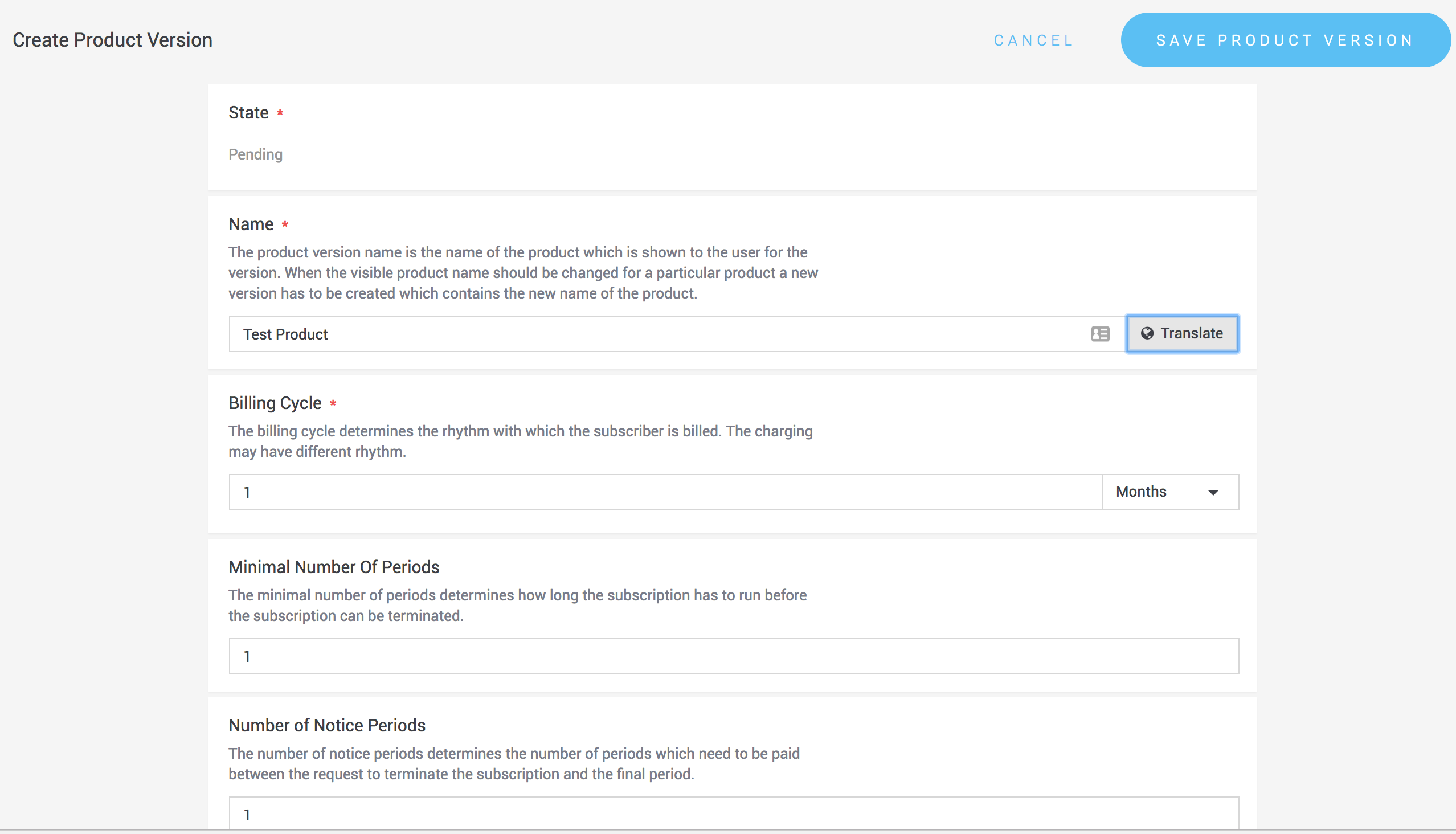
In the portal
- Open the product.
- Click Create Product Version.
- Define details such as billing period, notice period, and allowed currencies.
Via the API
Use the Subscription Product Version Service.
Example Request
{
  "billingCycle": "P:P1M",
  "defaultCurrency": "EUR",
  "name": {
    "items": [
      { "language": "En", "translation": "payment-service" }
    ]
  },
  "numberOfNoticePeriods": 1,
  "product": { "id": 3 }
}
Example Response
{
  "billingCycle": "P:P1M",
  "defaultCurrency": "EUR",
  "enabledCurrencies": ["EUR"],
  "id": 4,
  "incrementNumber": 1,
  "linkedSpaceId": 1,
  "minimalNumberOfPeriods": 1,
  "name": {
    "availableLanguages": ["en-US"],
    "items": [
      {
        "language": "en-US",
        "translation": "payment-service"
      }
    ]
  },
  "numberOfNoticePeriods": 1,
  "product": {
    "id": 3,
    "name": "payment service",
    "reference": "payment-service",
    "state": "ACTIVE"
  },
  "reference": "payment-service-1",
  "state": "PENDING"
}
Components and component groups
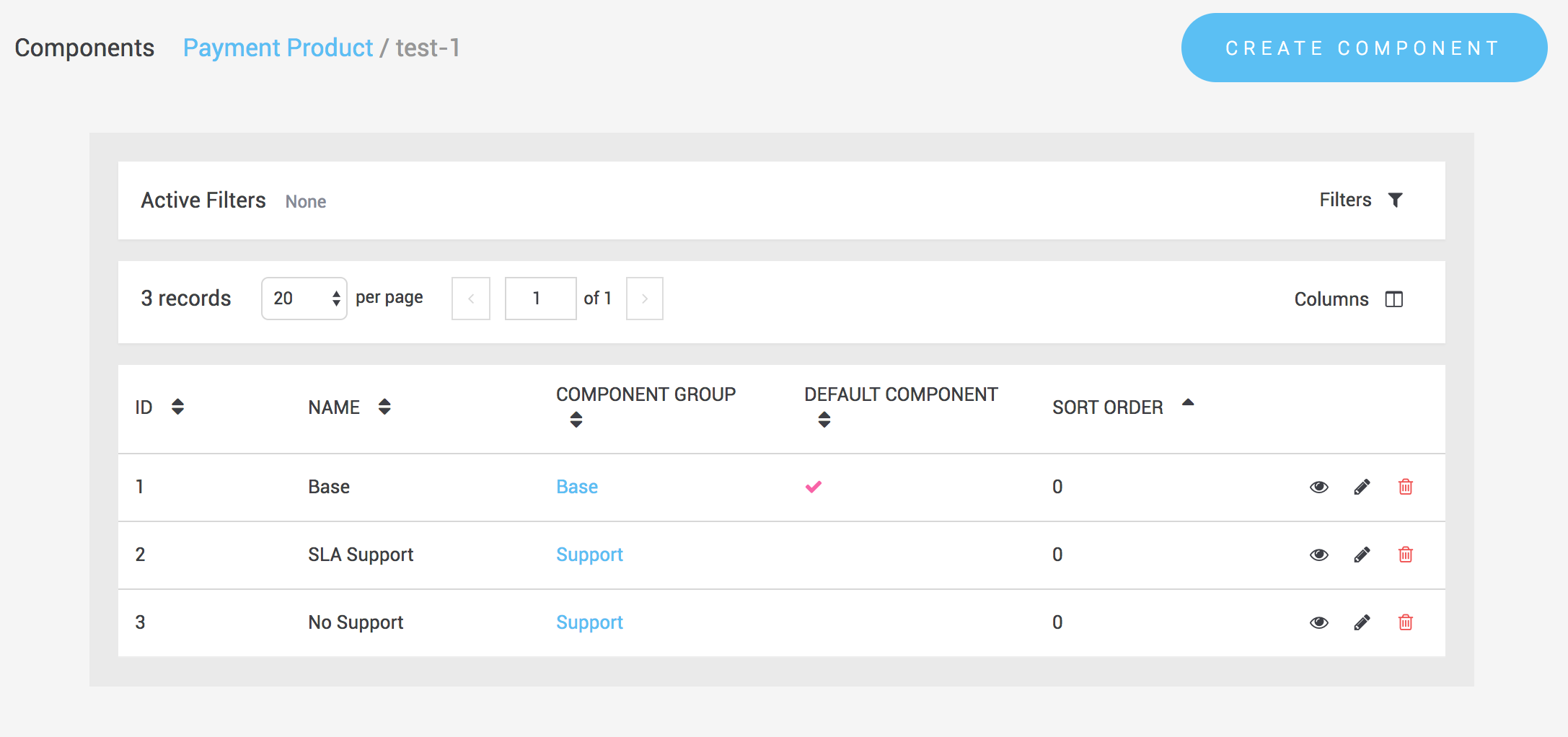
A product version is built from components and component groups:
- A component group contains one or more components.
- A component represents a specific feature of the product.
If a group contains multiple components, the subscriber can select which one to subscribe to. This makes products configurable.
Example: For a SaaS product with support tiers (basic, phone, enterprise), you can create a “Support” group with three components. Only one component can be active per subscription.
Components are also tied to product component references, which identify the same component across versions. These references are important for upgrades and downgrades, as they ensure fees are handled correctly when subscribers switch versions.
Component references can be created in:
Space > Subscriptions > Configuration > Product Component References
Component groups and components via the API
All operations can also be performed via the API.
Create a component group
Use the Subscription Product Component Group Service.
Example Request
{
  "name": {
    "items": [
      { "language": "English", "translation": "Base-Settings" }
    ]
  },
  "productVersion": { "id": 4 }
}
Example Response
{
  "id": 1,
  "name": {
    "items": [
      { "language": "en-US", "translation": "test-payment" }
    ]
  },
  "optional": false,
  "productVersion": { "id": 1, "state": "PENDING" }
}
Create a component
Use the Subscription Product Component Service.
Example Request
{
  "componentGroup": { "id": 3 },
  "name": {
    "items": [
      { "language": "English", "translation": "Base" }
    ]
  },
  "reference": { "id": 3 },
  "taxClass": { "id": 1 }
}
Fees
Fees are attached to product components (and indirectly to product versions). They can only be changed while the product version is in the pending state.
Types of fees:
- Setup fees (one-time)
- Period fees (recurring)
- Metered fees (usage-based)
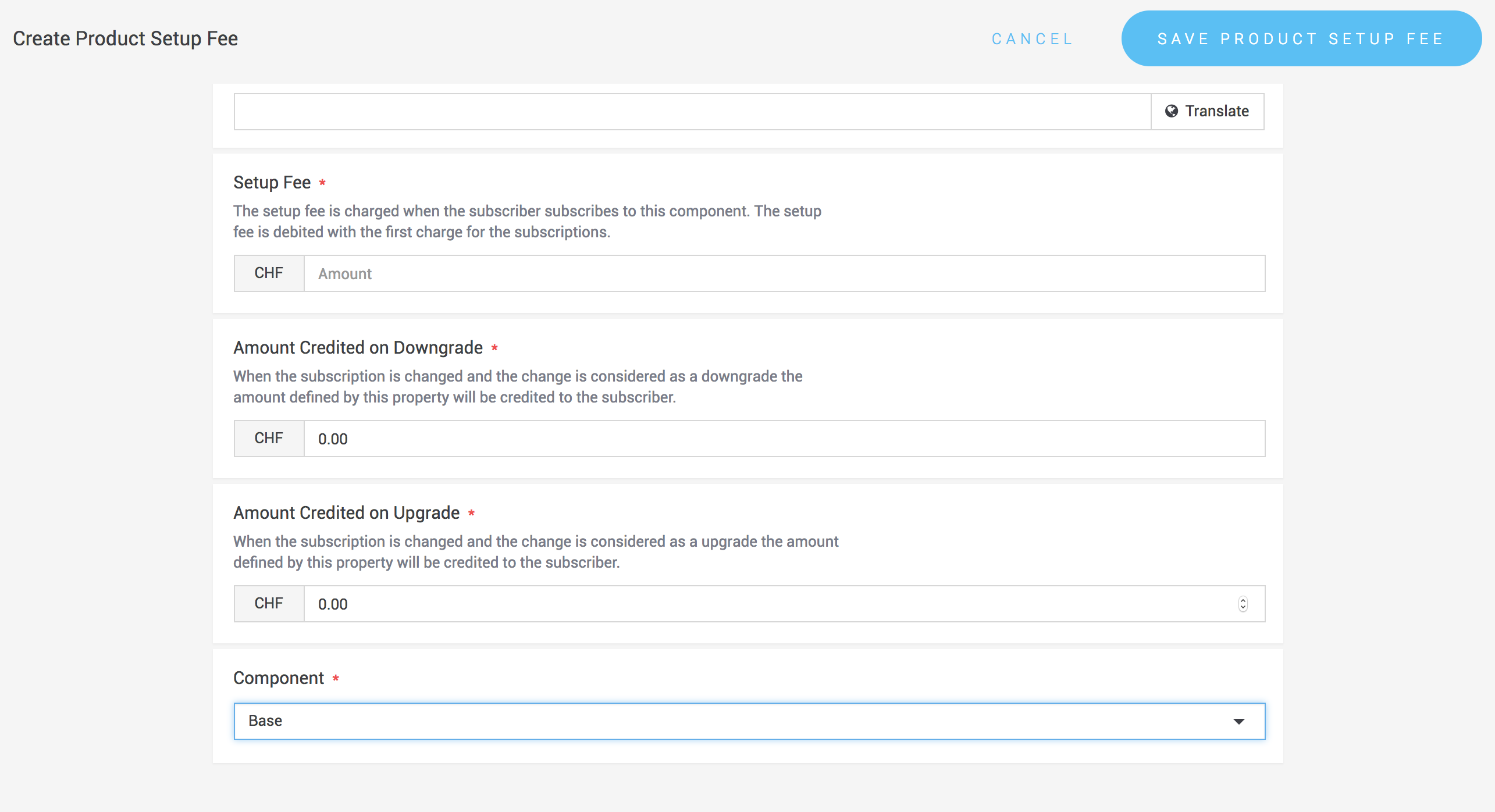
Setup fees
Setup fees are charged once when a subscriber signs up for a product version. They can also be used to define credits or debits for upgrades or downgrades. Setup fees must be attached to a component.
API: Subscription Product Period Fee Service
Period fees
Period fees are recurring charges applied each billing cycle. Like setup fees, they must be attached to a component and defined in all enabled currencies.
API: Subscription Product Period Fee Service
Metered fees
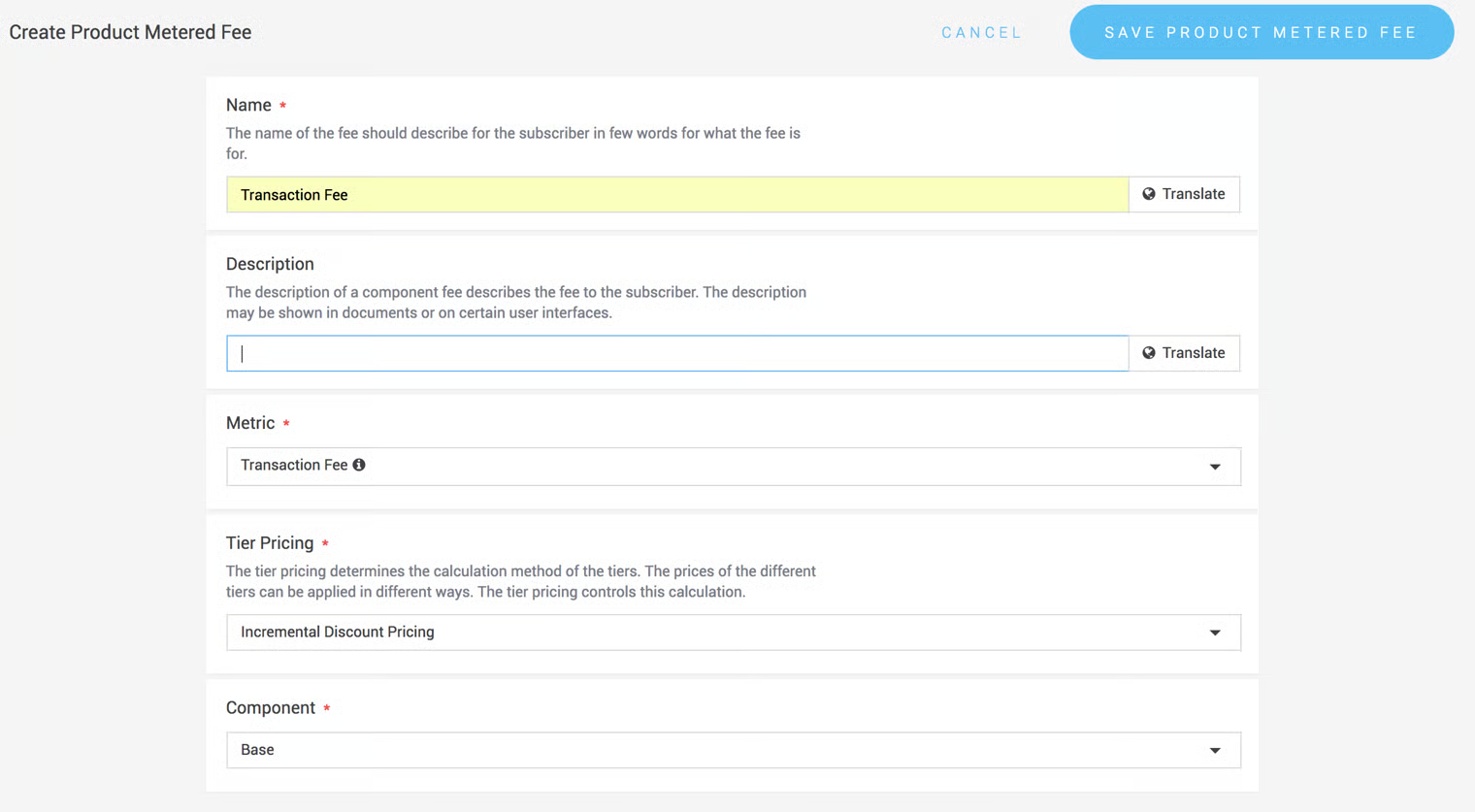
Metered fees are usage-based and calculated at the end of the billing period, based on usage reports.
Create a metric
Metrics define how usage is calculated:
- Sum of all usage reports
- Average of all usage reports
Example: For transaction-based billing, use the sum of transactions. For active-user-based billing, use the average.
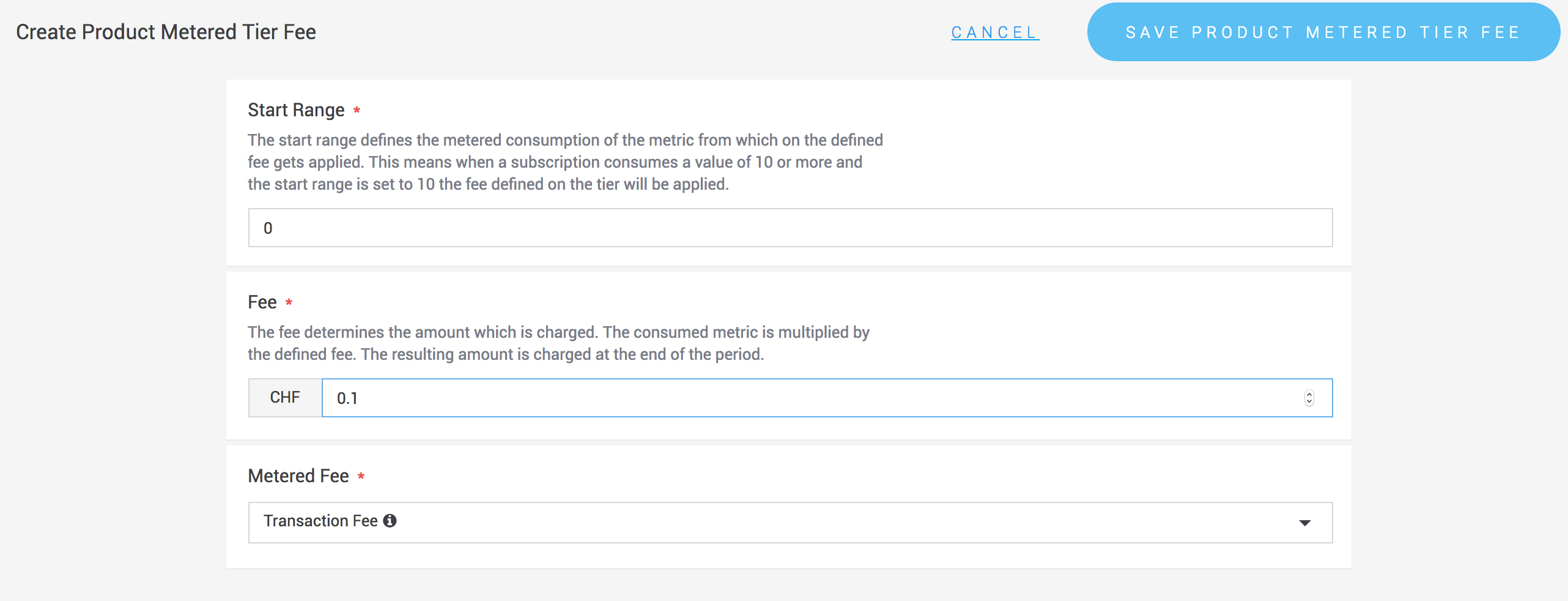
Tier pricing
Two pricing methods are available:
- Incremental pricing: usage is charged per tier, then summed.
- Cheapest tier pricing: the applicable tier is applied to all usage.
Example: Percentage pricing
Suppose you want to charge 2% of turnover. If a merchant reports sales of 1500 EUR:
1500 × 0.02 = 30 EUR
This can be configured as a metric where the unit is the transaction amount, and the tier price is set to 0.02.
If multiple currencies are used, you must either configure a metric per currency or convert transaction amounts into the subscription's billing currency before reporting.
Once all fees are configured, the product version can be activated.
Retiring a product version
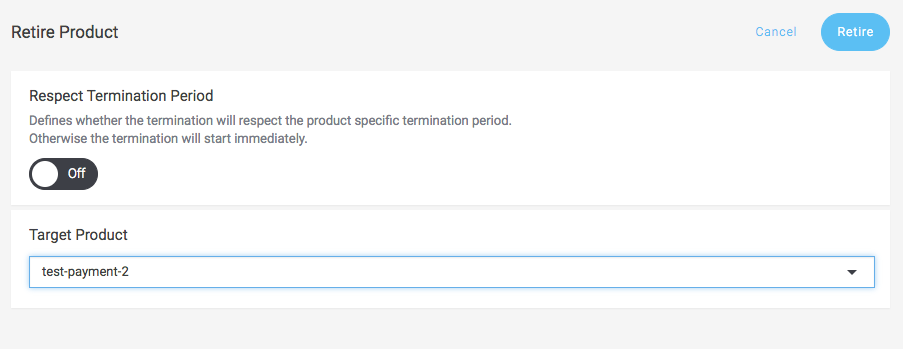
Product versions can be retired when they should no longer be offered. Subscribers are migrated either to another product version or to another product.
Retire in the portal
Click Retire in the product version view. You will be asked:
- Whether to respect termination periods
- Which product or version subscribers should be migrated to
Retire via the API
Use the Subscription Product Version Retirement Service.
Example Request
{
  "productVersion": { "id": 4 },
  "respectTerminiationPeriodsEnabled": true
}
Example Response
{
  "id": 4,
  "productVersion": {
    "id": 4,
    "state": "RETIRING",
    "reference": "test-1-1"
  }
}
Retiring a product
Retiring a product will retire all versions of that product. Existing subscribers are either terminated or migrated to another product if specified.
Retire in the portal
Navigate to:
Space > Subscriptions > Products
Select the product and click Retire. You can choose whether to respect termination periods and define a migration target.
Retire via the API
Use the Subscription Product Retirement Service.
Example Request
{
  "product": { "id": 1 },
  "respectTerminiationPeriodsEnabled": true
}
Example Response
{
  "id": 1,
  "product": {
    "id": 1,
    "name": "Payment Product",
    "state": "RETIRED"
  }
}
Related topics
- Subscriptions — subscribing a customer to the product version you created.
- Billing & Charging — how fees end up on the subscriber's ledger and get charged.
- Coupons & Discounts — granting discounts on these fees.